All about the search tool 🔍

Last update: Tuesday, Oct 13, 2026
In this post:
2. Advanced search to refine your searches

1. Research documentation
A. Case sensitivity
All search queries are treated as case-insensitive, no distinction is made between lower and upper-case letters, even when the terms are in quotes.
For example, the search for French will find all documents containing the word "french" or "French" or "FRENCH". The search for french will identify the same documents as French.
B. Accents
All search queries are accent insensitive, no distinction is made between a letter and its diacritical versions (with an accent, umlaut, or cedilla), regardless of the case used.
This means the search for México will return the same documents as the search for mexico. A search containing the word café will return documents that contain either "café" or "cafe."
C. Punctuation
The majority of punctuation marks are disregarded: this includes full stops, commas, semi-colons, colons, etc.
Only inverted commas and parentheses are taken into account.
D. Exact phrases
To search for an exact string of words, enclose it with the quotation character ".
The rules on case, emphasis and punctuation apply even to terms enclosed in inverted commas.
This means:
"informal meeting" will return all documents containing this exact string. Those that contain the words "informal" and "meeting" non-consecutively will not be returned.
"informal meeting" president will return documents containing the words "informal," "meeting" and "president." In this case, the inverted commas are redundant. The documents returned will be those containing these three words in any order.
Punctuation characters are also ignored in an expression between inverted commas.
Exclusion from search results
Forecasts are visible in the search results only if they have been published within the last 24 hours, while for agendas, the period is one month. Beyond that, they lose their relevance and do not appear.
2. Advanced search
A. Implicit operators
An "AND" is implied between search terms.
As such, presidential election returns all documents containing both "presidential" and "election."
B. Explicit operators
You can combine words to get a more precise result. When the words AND, OR, NOT are recognized as operators, they change their appearance when you type in the search bar:
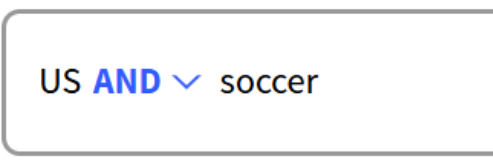
To activate this functionality, the operator must be entered in upper case and followed by a space.
All words that must be present are separated by an AND.
For example, power AND solar will find all documents that contain both the words "power" and "solar".
Spellings recognized as an AND:
English: AND, French: ET, Spanish: Y, Dutch: UND, Portuguese: E, Arabic: و
The key combination "CTRL+ALT+a" ("CTRL+option+a" on a Mac) generates an AND operator
If at least one word in a list must be present, separate the words in that list with an OR.
For example, solar OR nuclear will find all documents that contain either the word "solar" or the word "nuclear" or both.
Spellings recognized as an OR:
English: OR, French: OU, Spanish: O, Dutch: ODER, Portuguese: ONDE, Arabic: أو
The key combination "CTRL+ALT+o" ("CTRL+option+o" on a Mac) generates an OR operator
If a word should not be present in the retrieved documents, precede the word with the operator NOT.
For example, nuclear NOT weapon will find all documents that contain the word "nuclear" but not the word "weapon".
Spellings recognized as a NOT:
English: NOT, French: SAUF, Spanish: NO, Dutch: NICHT, Portuguese: NÃO (with or without an accent), Arabic: إلا
The key combination "CTRL+ALT+n" ("CTRL+option+n" on a Mac) generates a NOT operator
In addition to the NOT operator, the "-" character attached to the beginning of a word or phrase in quotation marks can be used to indicate that documents containing that word or phrase should be excluded. Unlike NOT, the "-" character cannot be used before a parenthesis.
Put a query in parenthesis: allows you to put operators on all or parts of a search in a specific order.
(iphone AND (13 OR 12)) NOT apple finds documents that include the word "iphone" associated with "13" or "12", and that do not contain the word "apple".
Interpreting a query without parentheses
When a query contains more than two words, it is always preferable to indicate the order of the operations to be carried out by grouping words and operators in parentheses. Without parentheses, the order of grouping implicitly retained will simply be that of reading from left to right (or from right to left for an entry in Arabic), and the search will be automatically rewritten with parentheses.
Examples:
President OR title=Russia AND China will be interpretated as:
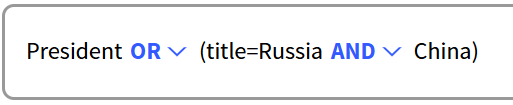
and will retrieve documents containing the word "President", or documents with the words "Russia" and "China" in their title— and it may also include documents that contain all three terms.
President AND title=Russia OR China will be interpreted as President AND (title=Russia OR China) and will find documents containing the word "President" and either having the word "Russia" or the word "China" in their titles.
⚠ An operator written as an exact phrase in quotes is not interpreted as an operator, but as a regular word.
C. Search in specific fields
By default, the words you enter are searched in all fields of a document: title, keywords, caption, body text, launch, etc.
It is possible to define specifically in which particular field the words entered should be searched, by prefixing the word with the name of the particular field, separated by "=".
For instance, title=basketball will find results that have in their title the word "basketball".
If you need to find several words in the same field, you can group those words.
title=(basketball AND France) will find documents that have in their title both words "basketball" and "France".
👉 You can find the list of specific fields here.
3. Examples
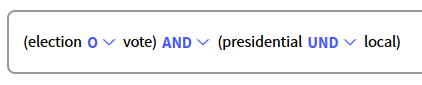
You can mix the spellings of the operators. This entry will search for documents that contain either "election" or "vote" or both, and that also contain either "presidential" or "local" or both.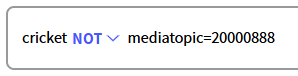
will find documents that contain the word "cricket", but that doesn't have the IPTC category "cricket". this entry will search for documents that contain "travel", "tourism" or "mass tourism", but not "immigration" or "covid", and that contain the words "governmeny", "minister" or "department".
4. Multilingual searches
It is important to differentiate between the language of the search terms and the language of the documents identified by this kind of search.
The search language can be changed by clicking the Settings icon (⚙) to the right of the search bar and selecting the desired language under “Search language.” Once a language is selected, it is saved automatically.
It is automatically set to the language of your browser, English being the default language if your browser's language is not supported.
All documents corresponding to this search are identified, regardless of their nature and language. You can then filter them using the language panels.
For example, if you search for terms in Arabic, you will get documents in all languages. Depending on your search, it may even be the case that no Arabic documents are returned and you will only get documents in English, for instance!
Example:
Your search language is English. You search for the term "Sweden".
You will find documents in all available languages that contain the word "sweden" or the translation of the word "sweden" from English to these languages. For instance, documents in French that contain the word "suede", in Spanish that contain the word "suecia", etc.Your search language is English. You search for the term "Suede." (French for "Sweden")
You will find all documents in English that contain the word "suede" and all the documents in the other languages that contain the translation of the word "suede" from French to these other languages. Therefore depending on the case, you may find different documents.
5. Search suggestion
Speed up and refine your searches with search suggestions
Search suggestions help you quickly find relevant content by displaying structured suggestions in real time, as soon as you start typing in the search bar.
They rely on two complementary types of suggestions:
Named entities (people, organisations, places),
Photo keywords (new ✨), dedicated to the AFP photo archive.
A. How does it work?
Accessing automatic suggestions : To display suggestions automatically while typing, make sure Automatic display is selected in your Search preferences. If Manual display is selected, press the Tab key (→|) to display suggestions while typing.
The 10 most frequently cited entities from the last 30 minutes of AFP production (as well as partner content using the same named‑entity system), will be suggested.
Real-Time Refinement: Suggestions are progressively refined by combining your input, the search language, and recent trends.
When you click on a suggestion, it is added to the search bar as a chip (rounded tag) and the search is automatically launched.
Once an entity has been selected, you can continue typing additional keywords, add Boolean operators (e.g.
AND,OR), or combine multiple entities to further refine your search.
B. Named entities
Named entities refer to people, organisations or places (city, country, territory, department, province, region/state, point of interest, or location without a specific subtype) from the AFP reference database.
Each entity is associated with a unique identifier, used across AFP content to facilitate indexing and searching within the large volume of information produced by the Agency.
For example, Emmanuel Macron, AFP, Grand Canyon or London are named entities.
Why use named entities?
Comprehensive search
All variants, aliases, titles and nicknames are automatically taken into account.Kate Middleton → Catherine Middleton, Duchess of Cambridge, Princess of Wales, Princess Kate
Emmanuel Macron → President Macron
Pelé → Edson Arantes do Nascimento (full name)
Twitter → X
Homonym disambiguation
Clear distinction between identical terms with different meanings.Washington → Washington, D.C. (city) or George Washington (US president)
Jackson → Michael Jackson (singer) or Andrew Jackson (US president)
Paris → the city of Paris or Paris Hilton
Tolerance for typing errors
Correction of spelling mistakes and typos, including more complex errors (multi‑word inputs or letter inversions).“Zelhensli” may suggest Volodymyr Zelensky
“Jhn Kennedy” is corrected to John F. Kennedy
“Teh White House” becomes The White House
“Macr B” returns Brigitte Macron
Named entities are especially recommended when creating saved searches with email alerts, to ensure that all variants of a topic are covered.
C. Photo keywords
Search suggestions now also include photo keywords, in addition to named entities.
Photo keywords are based on a controlled vocabulary used during the human indexing of the AFP photo archive.
They allow users to search images by visual content or theme, rather than by text alone.
Access to a consistent and relevant photo corpus
Grouping of images sharing common metadata
Support for synonyms, in both French and English
Photo keywords are used exclusively for the AFP photo archive and are an essential complement to full‑text search.
Examples
ILLUSTRATION AND POLICE INVESTIGATION → View photo results
ARMY UNITED STATES AND IRAQ WAR (2003–2011) → View photo results
VOTE AND France AND ILLUSTRATION → View photo results
CHILD AND SMARTPHONE AND MOBILE PHONE → View photo results
FEMALE EDUCATION → View photo results
SHORTCUT: You can save searches and find them easily later in the “My saved searches” tab.
--> Click on one to automatically relaunch the search.
👉 You may also like: Filters and facets🔍 Saved searches and email notifications 🚨
👂Share your thoughts on your AFP News experience to help us improve it. Your opinion matters.


Trouver facilement le bon contenu 🎯
Written by Marie Abraham.