Managing users in your team

Last update: Thursday, Apr 16, 2026
Account administrators can give user access and manage their permissions: role assignment, credit restrictions, and account expiration date, from the Manage Users page in the ADMINISTRATION menu.
1 – Role Management
On AFP News, two roles exist within the same company account:
Administrator: Through the ADMINISTRATION menu, Administrators can manage user accounts (add, edit, restrict…) and access the consumption dashboard.
They also have visibility over the team’s downloads in the Download History page. [more info]User: Does not have access to the ADMINISTRATION menu and therefore cannot perform any user‑related actions.
Regardless of the role, all accounts have access to the full AFP production included in their subscription.
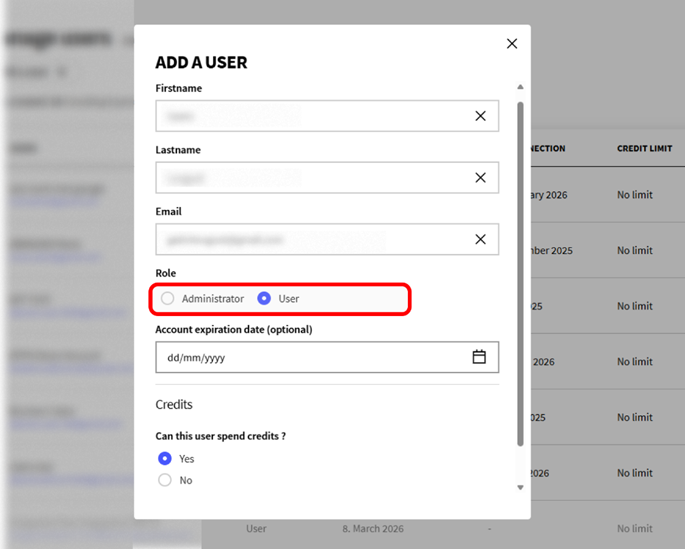
In the Administrator area, open Manage Users, select the user concerned, then click the “…” icon. In the window that opens, choose the role to assign to this user: Administrator or User.
👉See also How do you add new users?
2- [NEW ✨] Restrict Credit Usage
By default, all users are allowed to spend credits. The label “No limit” appears for these users in the “Credit limit” column.
It is possible to prevent a user from using the credit pack to download documents that require credits. When this setting is applied, the label “0” is displayed in the Credit limit column.
The user will still have access to the mockup format of videos, photos and infographics, as well as the preview version for articles that doesn’t require credits. If your account also includes a wire subscription , all content published on that wire will of course remain downloadable in all available formats. [more info here]
In the Administrator page, open the Manage Users page.
For the chosen user, click the Manage user “…” icon, then select Edit
In the popup, go to the Credits section and select No for “Can this user spend credits?”
Save your changes
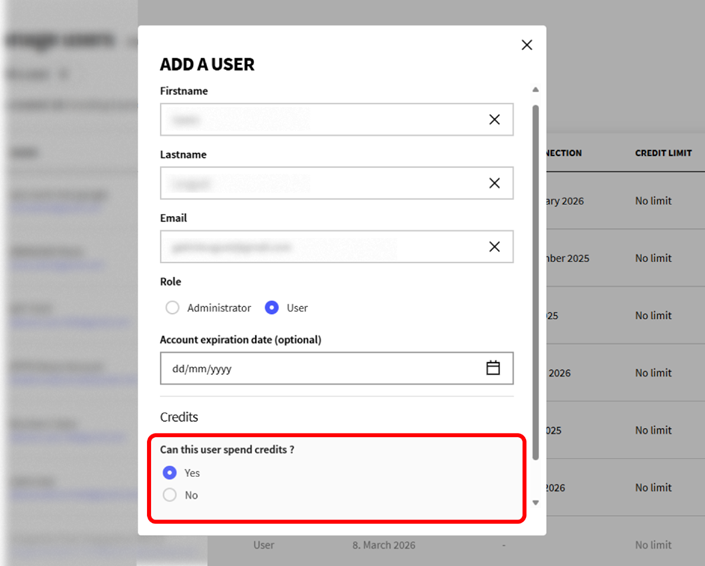
After the restriction is applied, the user will be logged out of their AFP News account.
They will no longer see the available credits counter (green block at the top right of the screen), nor the credit cost badge that appears when hovering over a document.
3- [NEW ✨] Set an Account Expiration Date
You can schedule the end of a user’s access, for example, for a contractor or an intern.
In the Administrator area, open the Manage Users page
For the chosen user, click the Manage user “…” icon, then select Edit
In the popup window, select the desired account expiration date
Save your changes
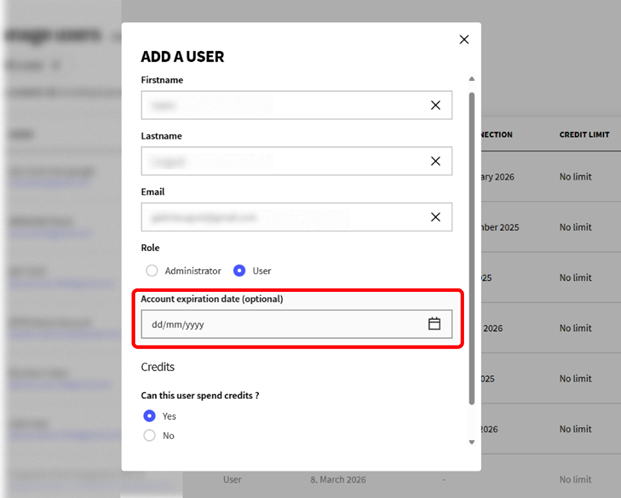
When the expiration date is reached, the account is automatically deleted. This action is irreversible.
👂Share your thoughts on your AFP News experience to help us improve it. Your opinion matters.


Espace personnel ⚙
Written by Marie Abraham.